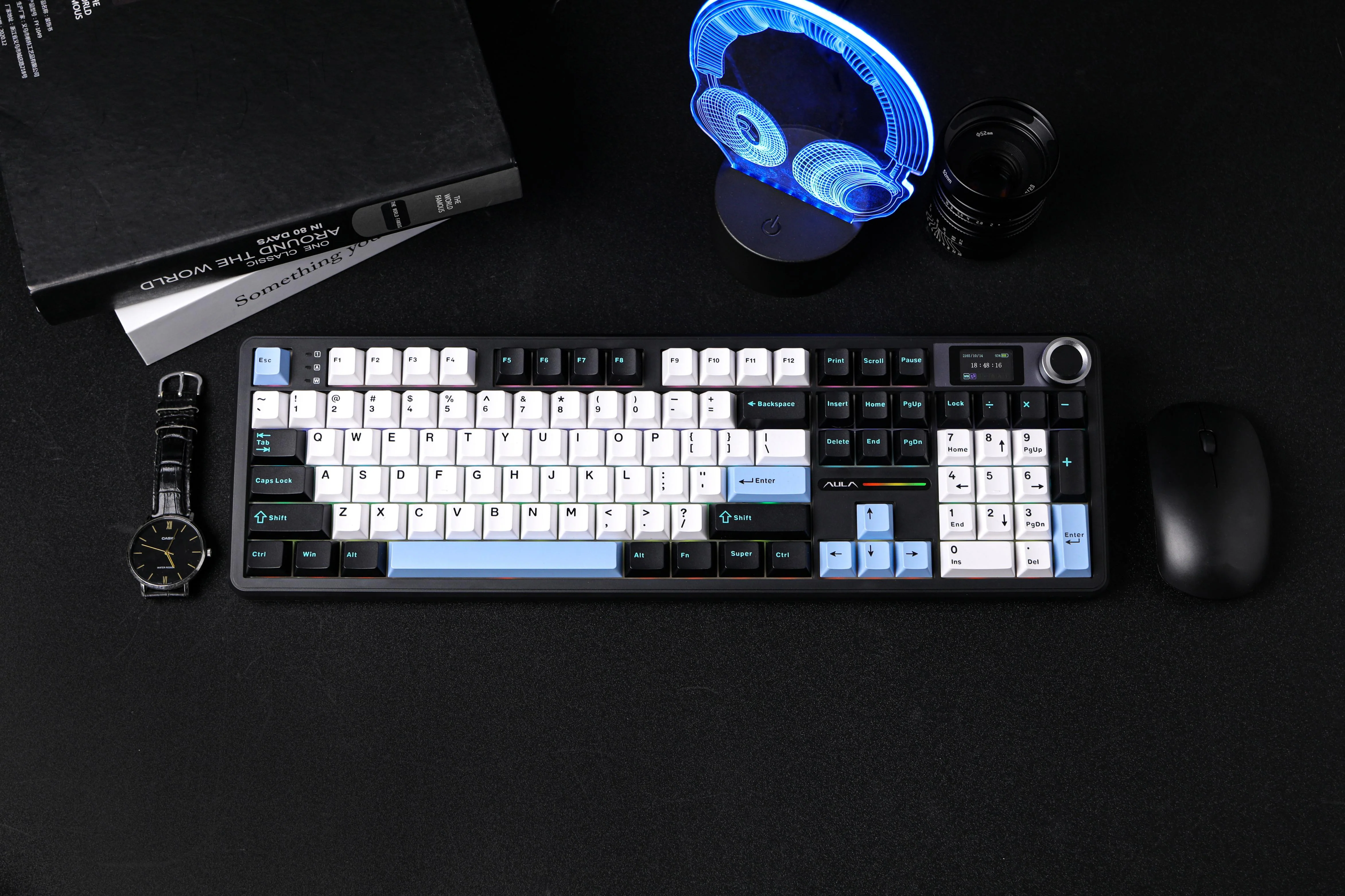
The Modern Keyboard
The most important tool in the modern age
Who This Guide Is For
This guide is designed for beginners and anyone who wants to know more advanced features. Whether you're just starting or want to type more efficiently, this guide will give you a better understanding of your keyboard.
What You'll Learn
- Proper finger placement and typing posture
- How to use essential keys like Enter, Tab, and Backspace
- Common keyboard shortcuts
- Basic troubleshooting techniques
About The Computer Keyboard
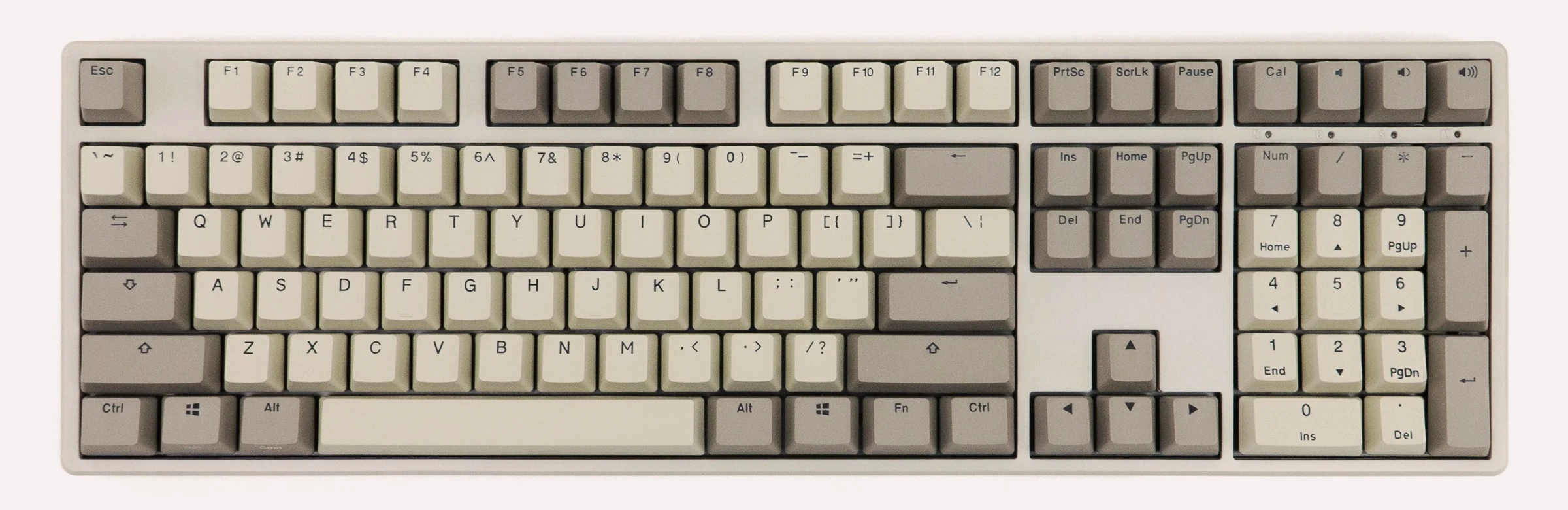
The computer keyboard is the primary input device used in modern computers. It allows direct control of the computer by pressing the keyboard buttons. It is used in every part of the computer, from searching the internet to writing a paper; the keyboard is at the heart of it all. On this website, you will learn how to develop a proper understanding of your keyboard.
Additional details and context about them will be found below in the detailed sections.
User Guide
Follow these step-by-step instructions to use a keyboard:
Step 1: Getting Started
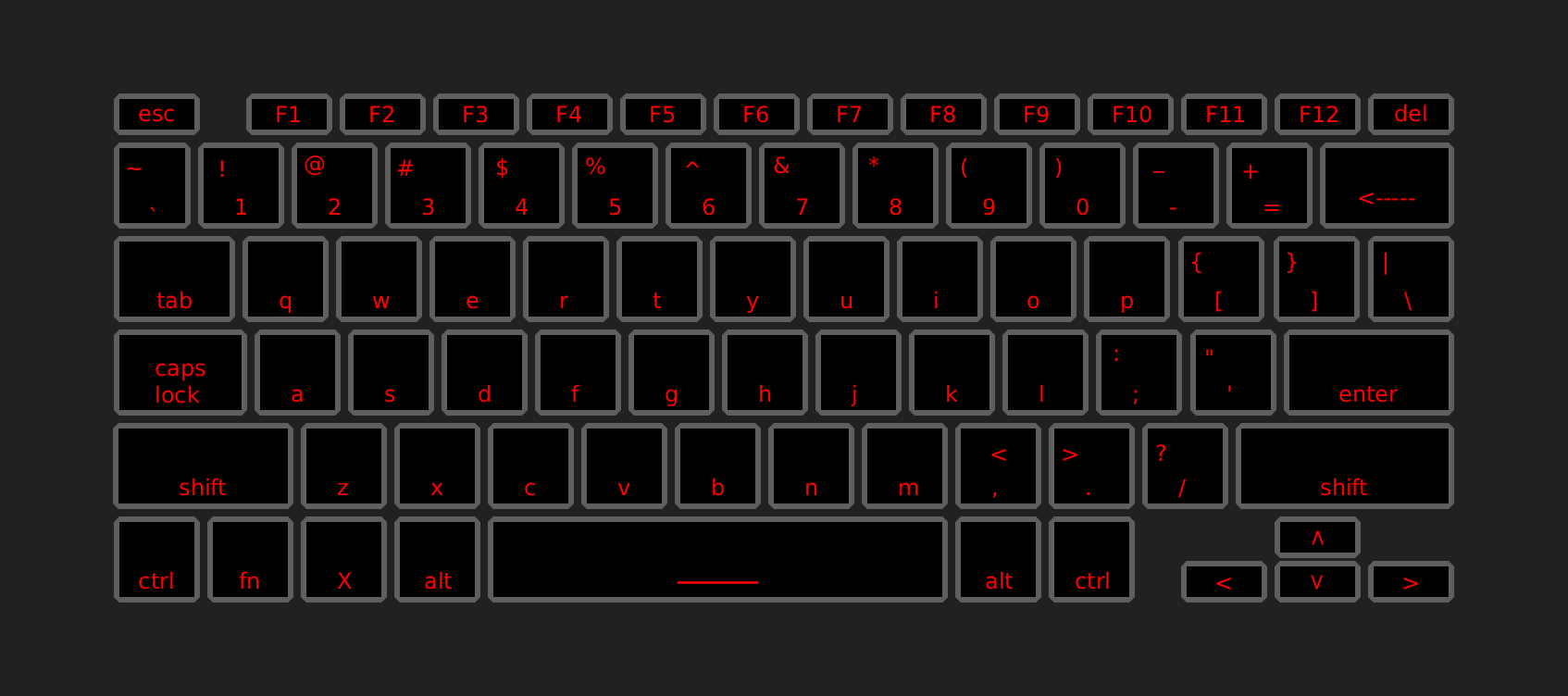
The first step to using your keyboard is to observe and understand the layout of the keyboard, noticing specifically what is called the ‘home row’ keys, (A, S, D, F for the left hand and J, K, L, ; for the right hand) using your pinky through pointer finger, with both thumbs resting near the space bar (the largest key on the keyboard). To prevent strain from extended use, straighten your wrist and curl your fingers while hovering over the keys.
Step 2: Main Operation
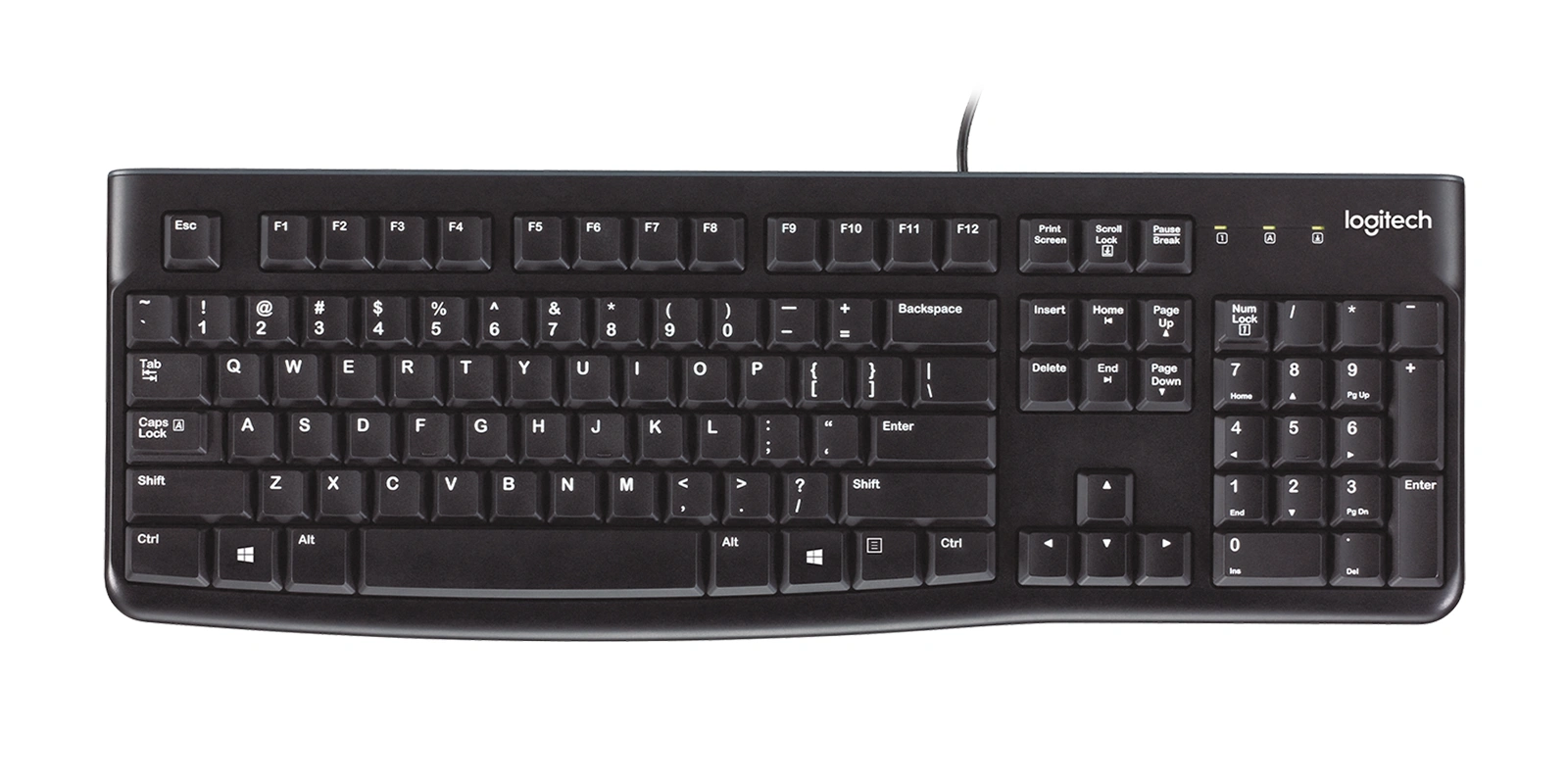
To begin using the keyboard, ensure you are within the area you wish to type in, press the key that has the same character you desire to input, and the key will appear on the screen. The other three primary keys are backspace, tab, and enter. The backspace is the primary way to delete the characters you have already typed, removing what is left of the cursor when pressed. Tab is for adding larger gaps near the beginning of paragraphs or other areas where a large gap is needed. Enter adds a new line after the cursor.
Step 3: Advanced Features
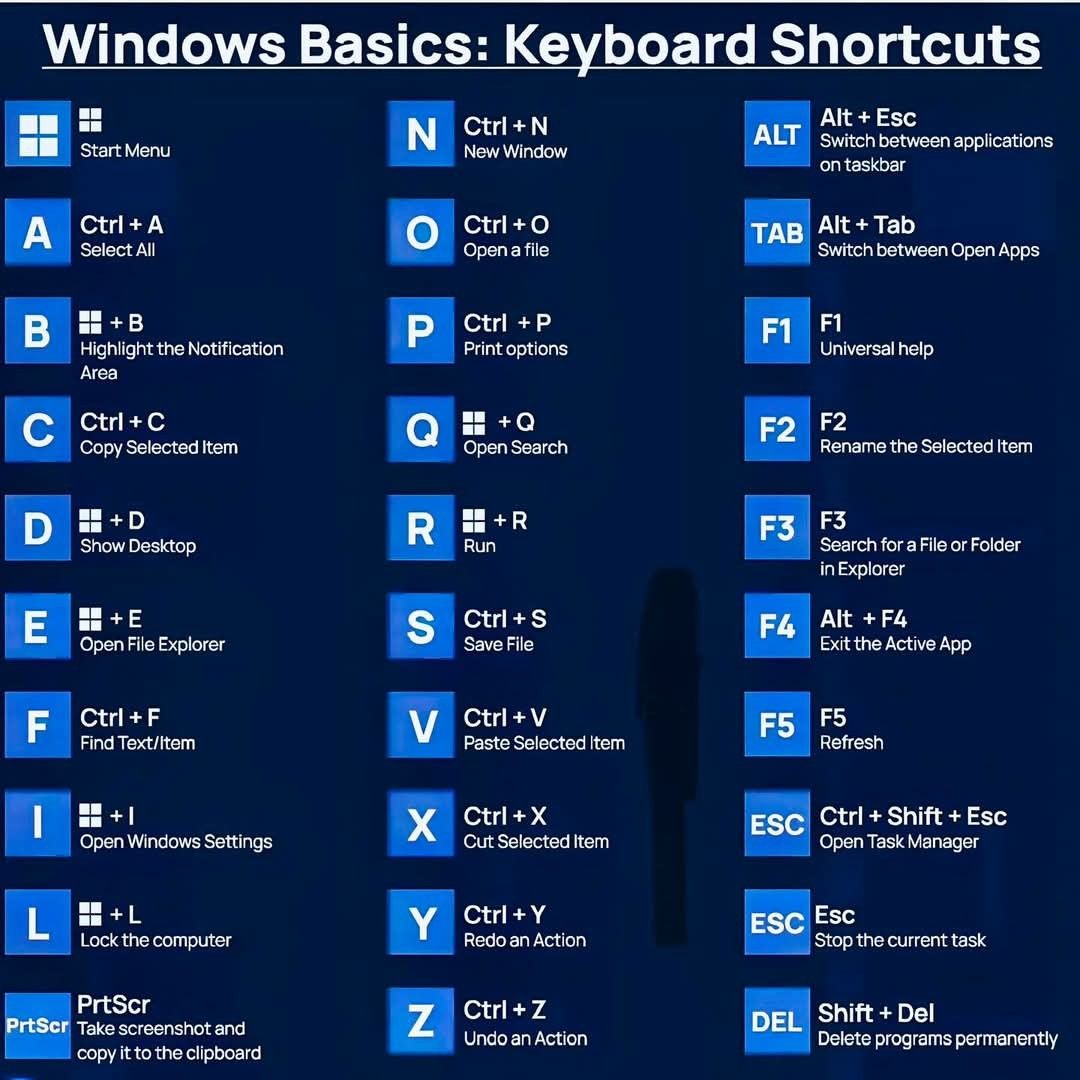
Modifier keys allow you perform additional functions:
- Shift: Capitalizes letters or tyoes the alternative symbol on a key
- Ctrl: Performs shortcuts like copying (Ctrl + C), paste (Ctrl + V), and undo (Ctrl + Z)
- Alt: Helps navigate menus and system functions
To use a shortcut, press and hold the modifier key, then press another key.
Frequently Asked Questions
What is a keyboard?
The modern computer keyboard is the primary input device that allows the user to enter text, numbers, and issue commands to the device.
How do I practice with the keyboard?
There are many online websites that you can use to practice typing, one of which is monkeytype.com.
Where do I buy a keyboard?
Most large distributors carry basic keyboards, they can also be found on digital marketplaces such as Amazon.
I have an issue with my keyboard!
Please see the troubleshooting section.
Troubleshooting
Problem: Keyboard is not working
Solution:
- Ensure the keyboard is properly connected.
- If using USB, unplug and plug it back in.
- If using Bluetooth, check connection on device.
- If using USB, try a different port on the device.
- Restart device with the keyboard connected.
- Contact the manufacturer if the issue continues.
Problem: Individual keys are not working
Solution:
- Check for dirt or debris under and around the key.
- Identify if the key can move freely.
- Clean the keyboard with canned air designed for electronics.
- If the issue continues, contact the manufacturer for assistance.
Problem: Keyboard is outputting different characters than what is typed
Solution:
- Check keyboard language in device settings.
- Ensure the correct keyboard layout is selected.
- Restart device after making any changes.
Problem: Keyboard keeps disconnecting (Bluetooth only)
Solution:
- Check battery level if using wireless keyboard.
- Move keyboard closer to device to ensure a strong connection.
- Reconnect the keyboard in Bluetooth settings.
- Restart device.
Contact & Support
support@example.com
Phone
1-XXX-XXX-XXXX
Feedback
We'd love to hear from you! Send us your feedback and suggestions.